Default Router Brands and How to Login
Having trouble accessing your router’s settings?
You’re not alone — many users face the same problem. Whether you’re a beginner or an advanced user, knowing how to access your router’s admin panel is key to managing your Wi-Fi network, improving speed, and keeping your connection secure.
However, since every router brand has a slightly different login process, it’s easy to get confused. This complete guide simplifies everything — giving you brand-specific instructions, setup links, and troubleshooting tips so you can log in to your router settings without stress.
Router Brands Covered on This Website
Below you’ll find the major router brands we’ve covered on our website. Each brand includes a direct link to its detailed login guide, setup instructions, and troubleshooting FAQs. You can visit these pages for brand-specific help and easy configuration.
TP-Link
TP-Link is one of the world’s most trusted router brands, offering high-speed connections with wide coverage.

Our TP-Link page provides a simple guide for logging into the admin panel, changing Wi-Fi credentials, and updating firmware. You’ll also find tips for improving performance and solving login errors.
PLDT

PLDT routers are commonly used by residential and business customers. If you’re a PLDT user, our detailed guide explains how to log in to your admin panel, modify network names and passwords, and enhance security. It also includes solutions for common connection and setup issues.
Smart Bro

Smart Bro routers are popular for portable internet and home use. On our Smart Bro page, you’ll learn how to access your router’s admin dashboard, adjust Wi-Fi settings, and boost signal strength. We’ve also included helpful steps for resetting your router and solving network errors quickly.
Converge

Converge routers are built for strong and stable internet performance. Our Converge router guide covers the login process, password changes, and network optimization tips. You’ll also find detailed troubleshooting advice to resolve slow connections or disconnection problems easily.
Globe At Home

Globe At Home offers flexible routers for both wired and wireless connections. If you’re facing login or Wi-Fi issues, our Globe At Home page walks you through every step — from logging in to managing connected devices. You can also learn how to fix weak signals and improve your Wi-Fi coverage.
ZTE
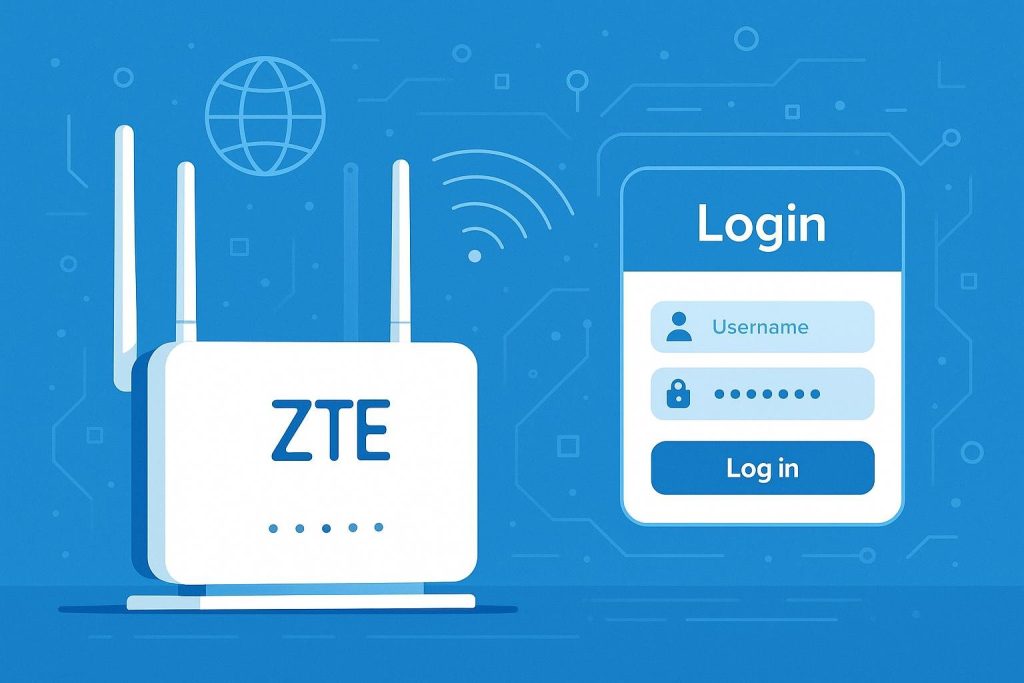
ZTE routers combine advanced features with reliable performance. Visit the ZTE router page for instructions on how to log in, upgrade firmware, or modify your Wi-Fi name and password. You’ll also find practical troubleshooting guides for resolving connection problems or slow speeds.
Skyworth
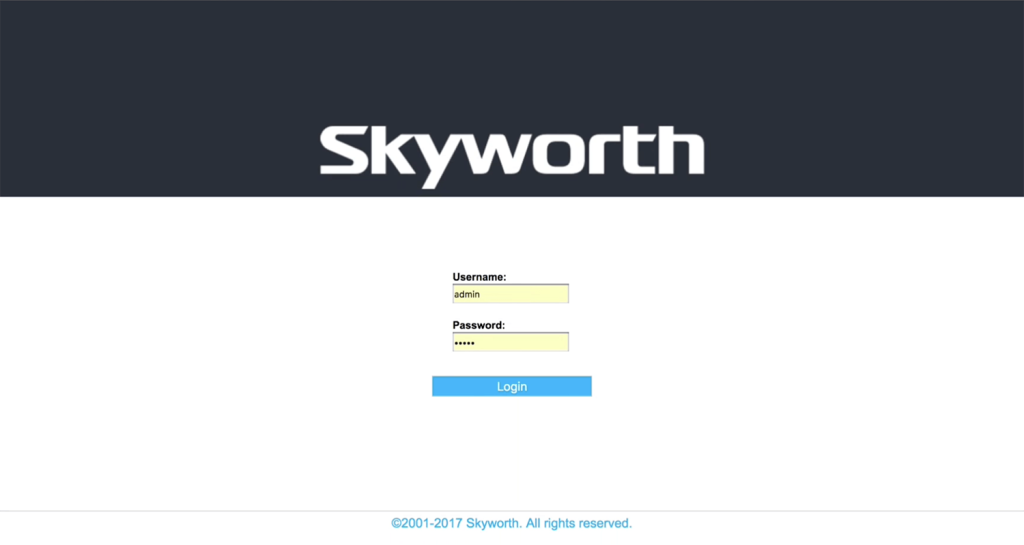
Skyworth routers are simple, efficient, and easy to set up. Our Skyworth page explains how to access your router dashboard, use default credentials, and fix common Wi-Fi interruptions. You’ll also get tips on securing your network and enhancing overall stability.
Tenda

Tenda routers are affordable yet powerful. The Tenda page includes all you need — from setup instructions and parental controls to performance optimization and password recovery. You’ll also learn how to troubleshoot when the login page doesn’t open.
Huawei

Huawei routers are well known for their speed, reliability, and smart connectivity features. In our Huawei router section, you’ll find easy login steps, methods to change your Wi-Fi name, and guides to manage multiple connected devices. If you experience slow speeds, our troubleshooting tips will help you fix them in minutes.
Mercusys
Mercusys routers provide full control over your Wi-Fi network with a clean and simple interface.
Our Mercusys login guide helps you access the admin panel, update passwords, and adjust security settings. You’ll also learn how to monitor connected devices and keep your network safe.
Xfinity
Xfinity routers are designed for convenience and control. Through the Xfinity login page, you can easily manage your Wi-Fi network, change credentials, and update security settings. The guide also covers how to reset your router and improve network performance.
Common Router Setup Issues and How to Fix Them
Even with different brands, most routers share similar setup challenges. Here’s how to fix the most common problems:
Can’t Access the Router Login Page
If your router login page isn’t loading, double-check that you’re entering the correct IP address.
Each brand has its own default IP, like 192.168.0.1 or 192.168.1.1.
Make sure you’re connected to the router’s Wi-Fi (or LAN cable if wired). If it still doesn’t open, try restarting your router and clearing your browser cache.
Forgot Username or Password
Forgot your router credentials? Don’t worry — most routers include a reset button. Press and hold it for about 10–15 seconds to restore factory settings. Then, log in using the default credentials listed in your router’s manual or printed label.
Slow Internet Speeds
A slow network can often be improved by repositioning your router, updating firmware, or switching between 2.4GHz and 5GHz frequencies.
Also, avoid interference from nearby electronic devices. For detailed optimization tips, check your router’s dedicated guide on our site.
Connection Drops or Wi-Fi Instability
If your Wi-Fi keeps dropping, it may be due to signal interference or outdated firmware. Keep your router away from walls or appliances, and ensure it’s using the latest firmware version. Our brand-specific troubleshooting sections provide quick solutions to restore stable connectivity.
Final Thoughts
Accessing your router settings doesn’t have to be complicated. With this guide and our brand-specific pages, you can easily log in, adjust your settings, and fix common issues — all without calling a technician.
Whether you’re setting up your first router or optimizing a professional network, understanding your router’s login process gives you more control, security, and performance.